Installing on Android

1

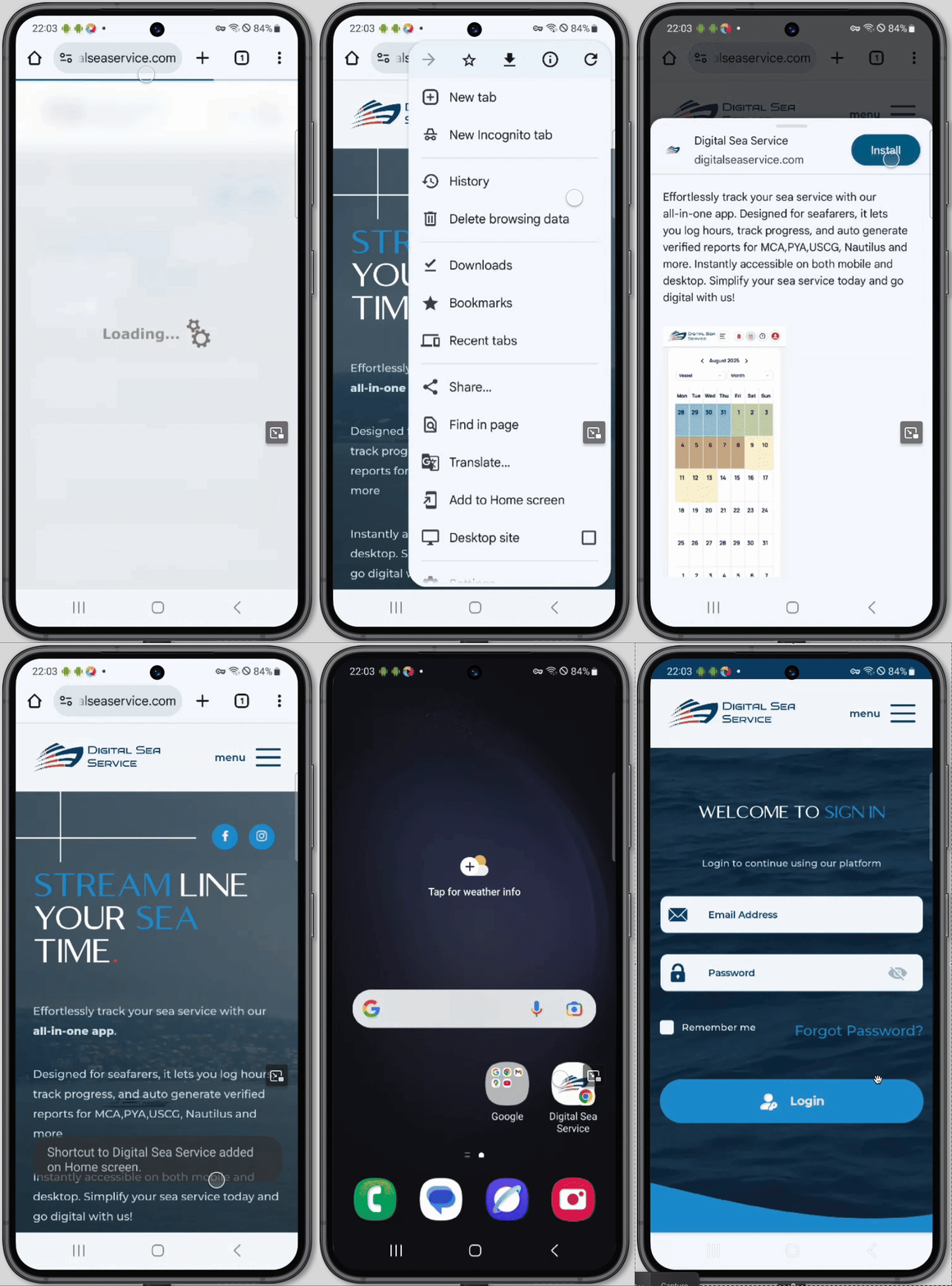
Open Digital Sea Service in Chrome browser

2

Tap the menu icon (three dots) in the top right corner

3

Select "Add to Home screen" from the menu

4

Tap "Add" in the confirmation dialog

5

The app icon will appear on your home screen

Installing on iOS

1

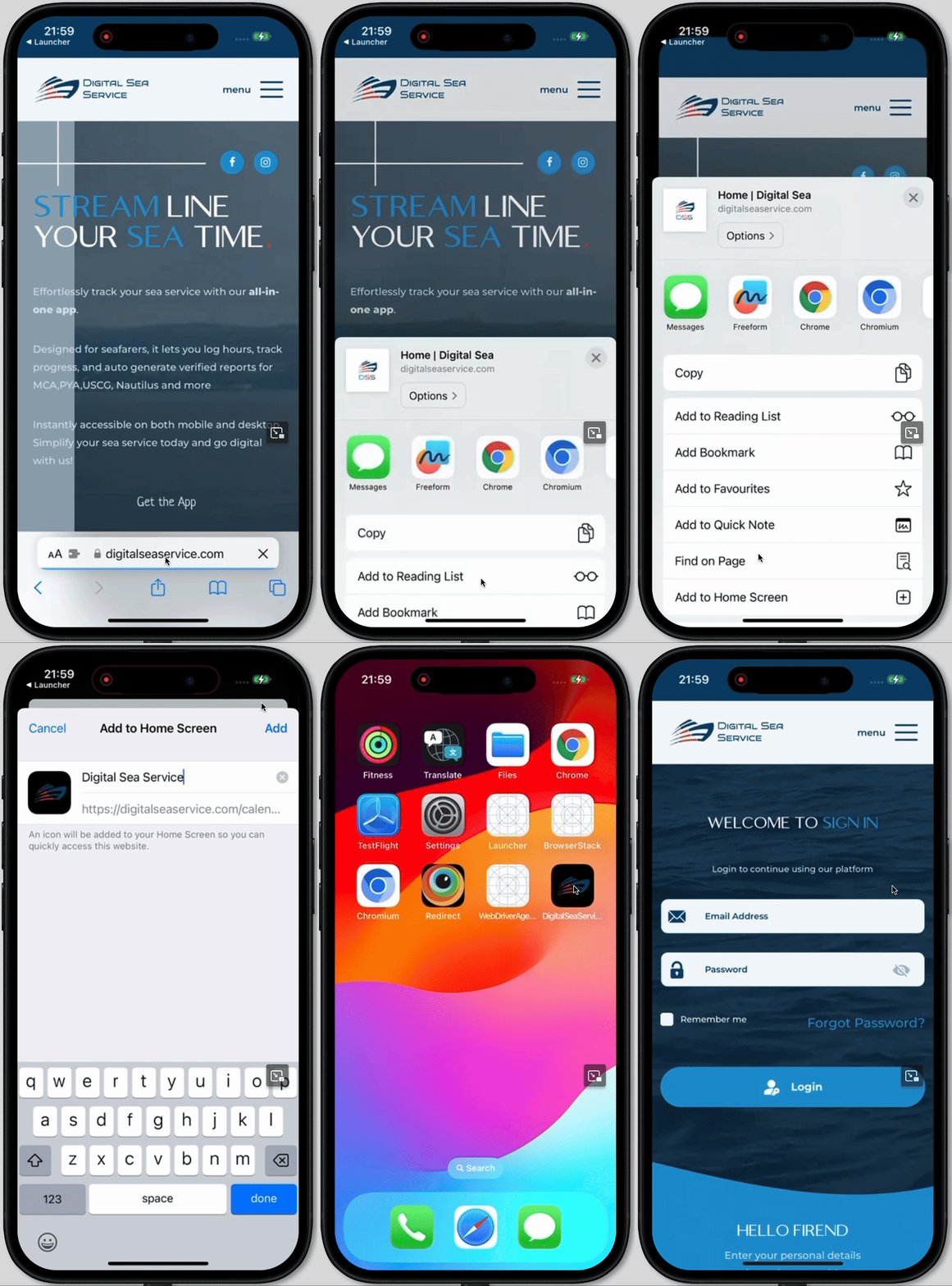
Open Digital Sea Service in Safari browser

2

Tap the Share button (square with arrow) at the bottom of the browser

3

Scroll down and tap "Add to Home Screen"

4

Choose a name for the app and tap "Add"

5

The app icon will appear on your home screen

Installing on Windows

1

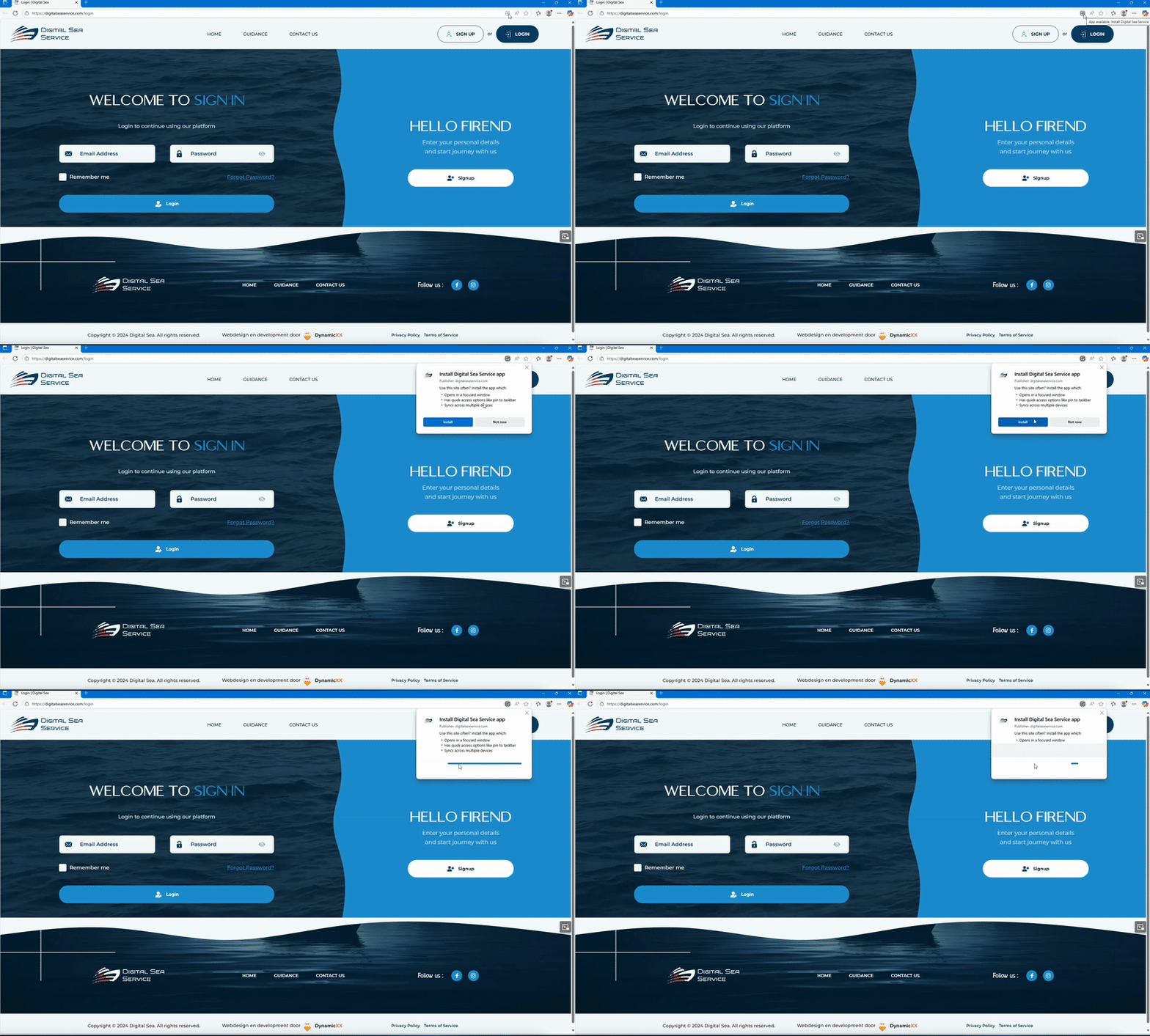
Open Digital Sea Service in Chrome or Edge browser

2

Click the install icon (+ sign) in the address bar

3

Click "Install" in the popup dialog

4

The app will install and create a desktop shortcut

Install on Android Install on iOS Install on Windows